Synchronize Video
Use this workflow when a match was tagged live without video and the video is added afterwards. Sync Mode lines your previously tagged events up with the video, so they can be reviewed accurately in post-game analysis.
This page covers lining tagged events up with the video. To line several camera angles up with each other, see Angle Sync.
Before You Start
- Save a backup of the game: Game menu → Save Game
- Confirm you have access to the correct video file.
Saving the game creates a local JSON backup you can restore if needed.
1. Add the Video Source
- Open the game.
- Go to: Game menu → Edit
- Add the correct video source in the Video step of the wizard and save.
2. Open the Timeline
- Open Preferences and switch to Video Analysis Mode (or the Standard view).
- Open the Timeline tab below the event windows.
The timeline shows your tagged events against the video duration, with a solid P1 marker and guide line for the start of each period and a dashed P1 end marker for the end.
3. Turn on Sync Mode
Click Sync Mode in the top right of the timeline. The Sync Mode panel opens with three steps.
Step 1 - Pick the event
Click the event in the timeline that you can identify in the video - usually the start of period 1 - to use it as the anchor.
If the event has no video time yet, as is the case for a game tagged live, the panel says so and uses its game clock to work out the shift instead. The event gets a video time when you apply.
Step 2 - Move the video
Move the video to where that event actually happens, then click Use this position to lock it in.
Use the nudge buttons (-5s, -1s, -0.1s, +0.1s, +1s, +5s) to fine-tune the position. The panel shows the current video time and the offset it is about to apply, for example +2.1s later:
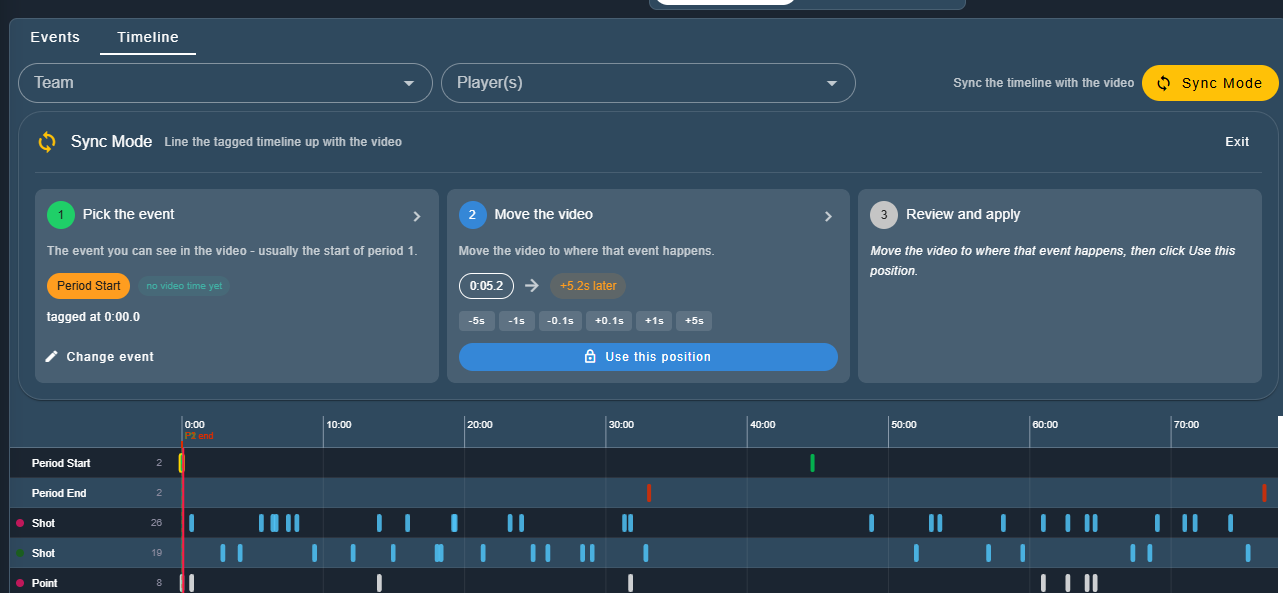
Once the position is locked the panel shows Locked at, and you can play or scrub the video freely - the line-up will not change until you click Re-position.
Step 3 - Review and apply
The summary shows how many events will move and by how much, with a preview of the first few events before and after the shift.
Click Apply sync.
Result
Every event at or after the anchor is shifted by the same offset, so your previously tagged live events line up with the video. Only the video times of the events are changed - the tagger clock times are left alone.
An Applied card and a snackbar confirm how many events moved, with an Undo option if you need to reverse it.
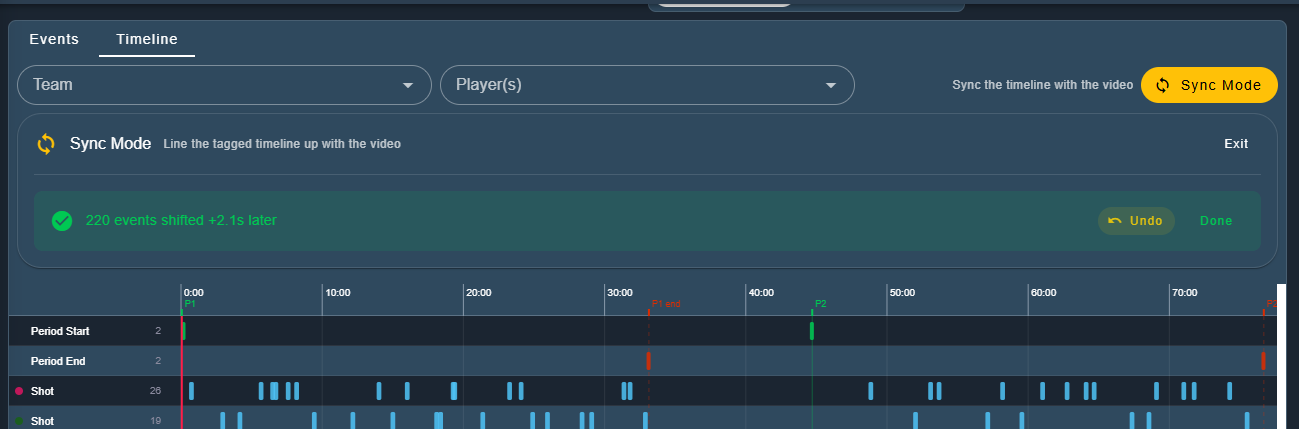
If an event would fall before the start of the video, its video time is held at 0:00 and the panel warns you before you apply.
Note
Complete this synchronization workflow before adding new video-tagged events. If re-synchronization is required after additional tagging, run Sync Mode again - the panel always reads the anchor's current video time, so a second pass uses fresh timings.
Sync Mode is available in the Studio as well as in the Tagger. See The Timeline.