The Timeline
View your tagged events against the video and turn them into clips and playlists.
Overview
The Timeline section of the Studio shows your tagged events laid out along the video. It is organised into five sub-tabs:
- Timeline — the event timeline described on this page.
- Matrix — a matrix view of your events.
- Clips — the clips generated from your events, with a Search Drawings switch and an event search to help you find a particular clip.
- Custom Playlists — your saved playlists.
- Merged Timelines — timelines merged from the tagged events of more than one game.
The Timeline Toolbar
Three filters sit above the timeline:
- View — switch between Events, Linked Events and Players.
- Team — filter the timeline to a single team. Clearing the team also clears the player filter.
- Player(s) — filter the timeline to one or more players.
When the game has a video, a Sync Mode button appears at the right of the toolbar. See Synchronize Video for the full workflow.
Reading the Timeline
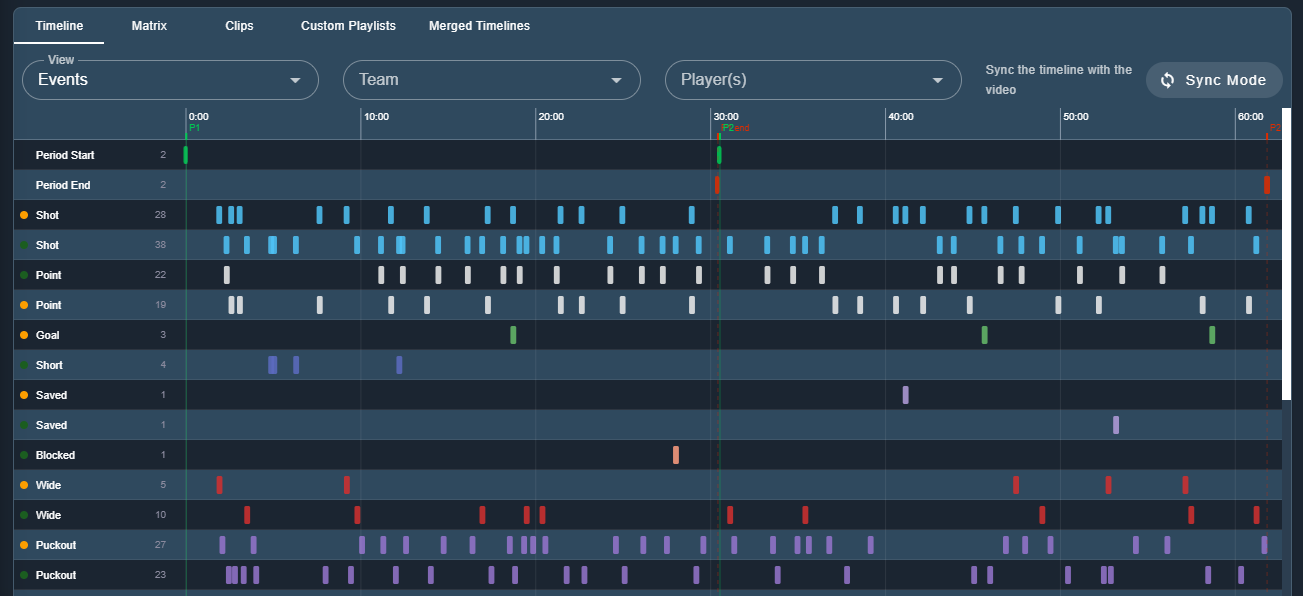
- A time ruler runs along the top of the timeline.
- Period markers show where each period starts and ends: a solid P1 flag on the ruler with a guide line for the start of period 1, and a dashed P1 end marker for the end. The same markers are shown for every period.
- Each row is an event, or a player when you are in the Players view. The row label shows a team colour dot, the row name and the number of events in the row.
- The playhead follows the current video position, so you can see where the video is against your events.
Hovering and Clicking
Hovering over a bar shows a tooltip with the event name, the team, the player number and the time range of the clip.
- Click a bar to play that event's clip. Tagger seeks to the start of the clip rather than the moment the event was tagged. If the clip times have not been set, they are worked out from the event's lead and lag times.
- Click a row label to load every event in that row as a playlist, so you can review a whole event type or a whole player in one pass.
- Click a bar while Sync Mode is on to use that event as the sync anchor instead.
Sync Mode in the Studio
Sync Mode works the same way in the Studio as it does in Tagger, using the same three step panel. Turning it on:
- rewinds the video to the start and pauses it,
- switches the view to Events and clears the team and player filters,
- turns the drawing overlay off, so your clicks select timeline events rather than drawing on the video.
It also gives you a Merged timeline filter to scope the sync to a merged timeline. Turning Sync Mode off clears the selection and returns the drawing overlay and filters to whatever you had before.
Next Steps
- Synchronize Video — line live-tagged events up with a video
- Studio Introduction — an overview of the Studio