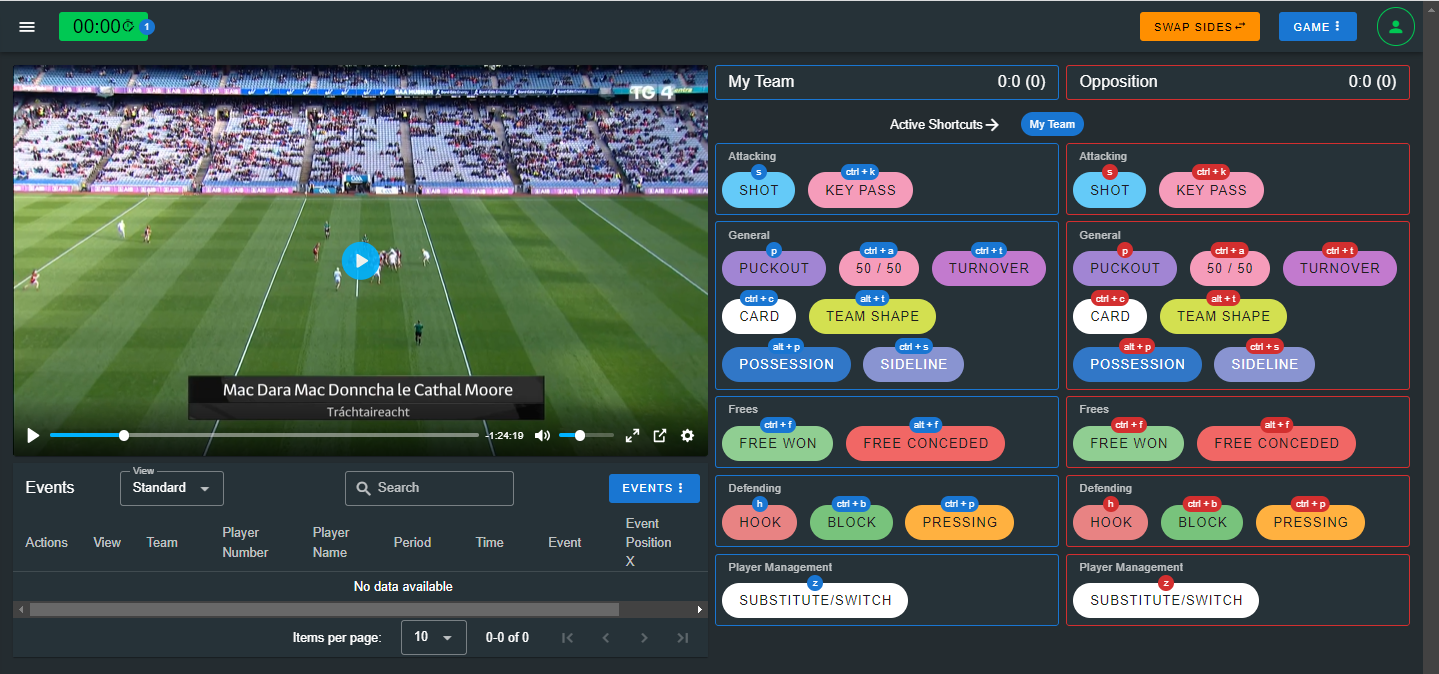
updatedAt: 2026-09-18 image: /images/docs/shortcuts/01-tagger-shortcuts.png
Keyboard Shortcuts Configuration
Configure keyboard shortcuts for use in the Tagger window
Keyboard Shortcuts
Keyboard Shortcuts help to accelerate the tagging process. This is especially useful when tagging video. The shortcuts are fully configurable and are displayed alongside the event buttons in the Tagger window.
The video player shortcuts are not displayed in the Keyboard Shortcuts configuration screen and these are not editable.
Keyboard Shortcut Configuration
To enable Keyboard Shortcuts, go to your Sport Configuration, and click on the Keyboard Shortcuts configuration button. In here click on the "Enable Keyboard Shortcut" switch.
Initially, there are no keyboard shortcuts setup. However you can quickly generate all event, event label and player shortcuts along with team toggle buttons by clicking on the "Auto-generate" button. The popup will prompt you to select a modifier for each team. By default Team A modifier will be set to ctrl and the Team B modifier will be set to alt. So essentially if you want to tag an event for Team A you would hit the ctrl button and for Team B you would select the alt button. This is visible in the Tagger window as the Active Shortcuts will point to the team selected.
After you have generated the shortcuts you can then modify any of the shortcuts as you please.
Event button shortcut display
After the shortcuts have been enabled you will see the shortcut key combinations displayed with each button in the Tagger window.