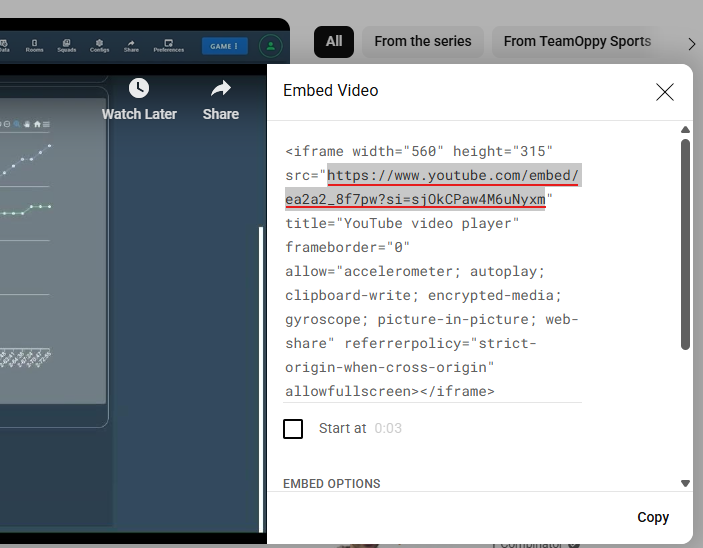
Embedded Links
Embedded links from Google Drive, OneDrive and YouTube
How to Create an Embedded Link
Images and Videos can be embedded into Reports using embedded links. The below describes how to get an embedded link from Google Drive, OneDrive and YouTube. The process is the same for both images and videos.
Google Drive
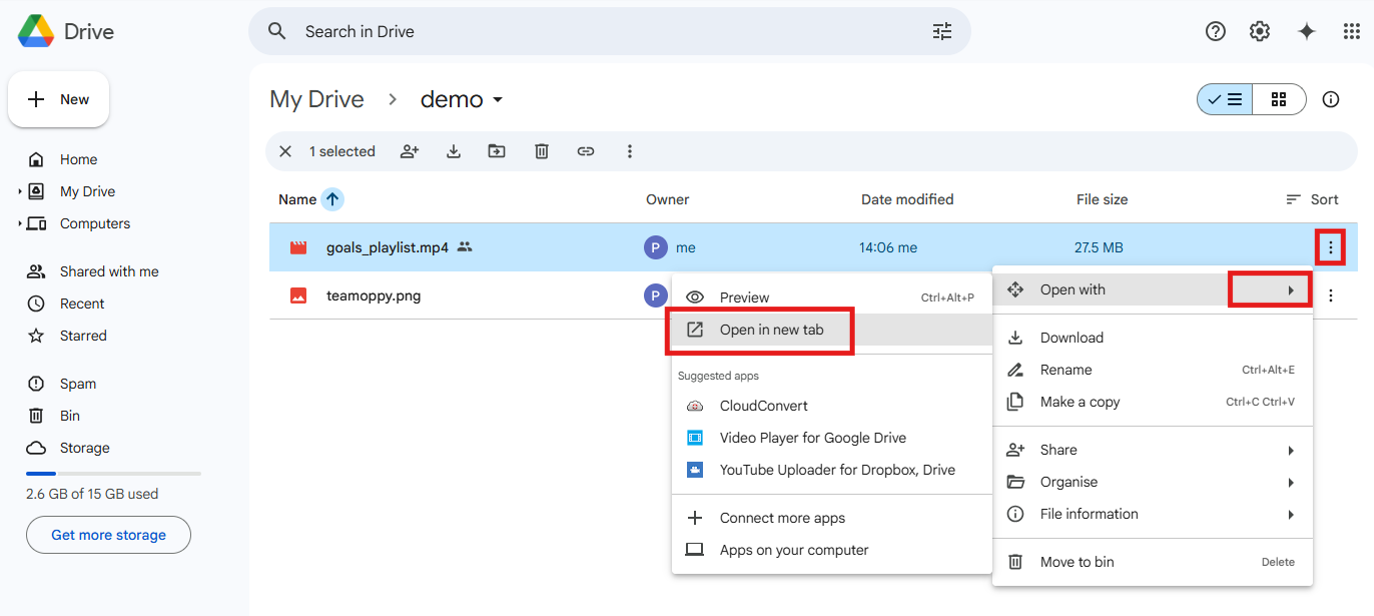
In Google Drive, click on the menu button, select Open With and the Open in new tab
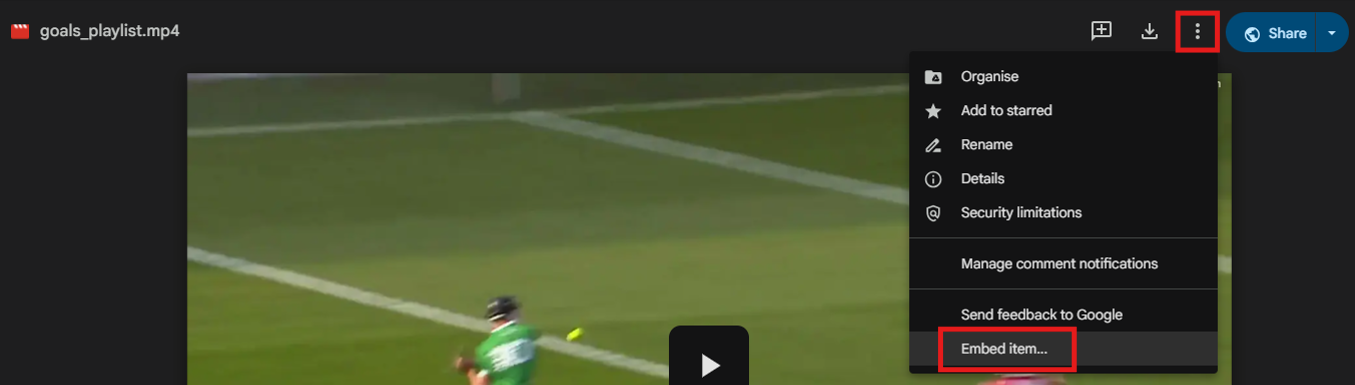
Click on the menu button here and select Embed item
Copy the link text in the src field and use this to create the Embedded Image or Video in the report.
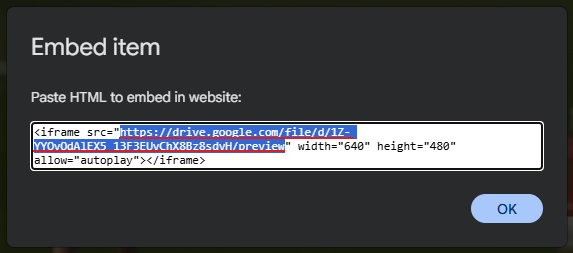
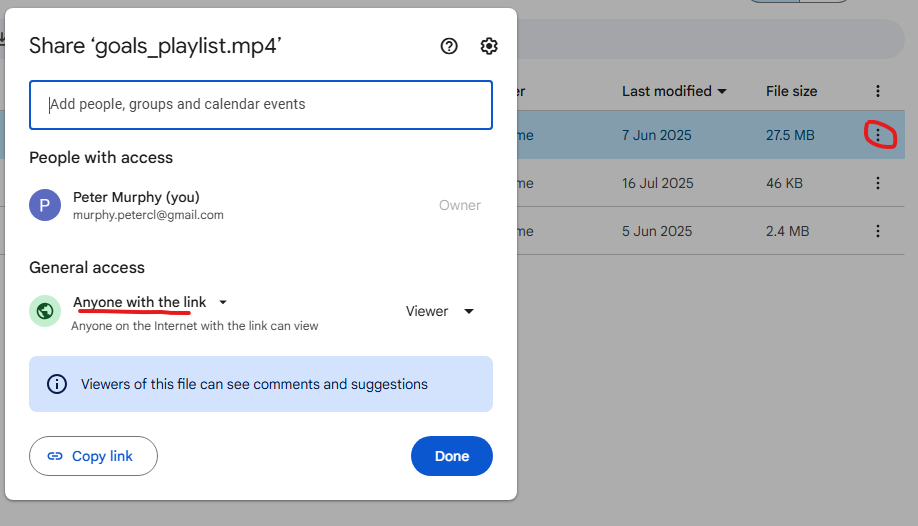
Note: also ensure that the Share permissions on the file are set to Anyone with the link.
OneDrive
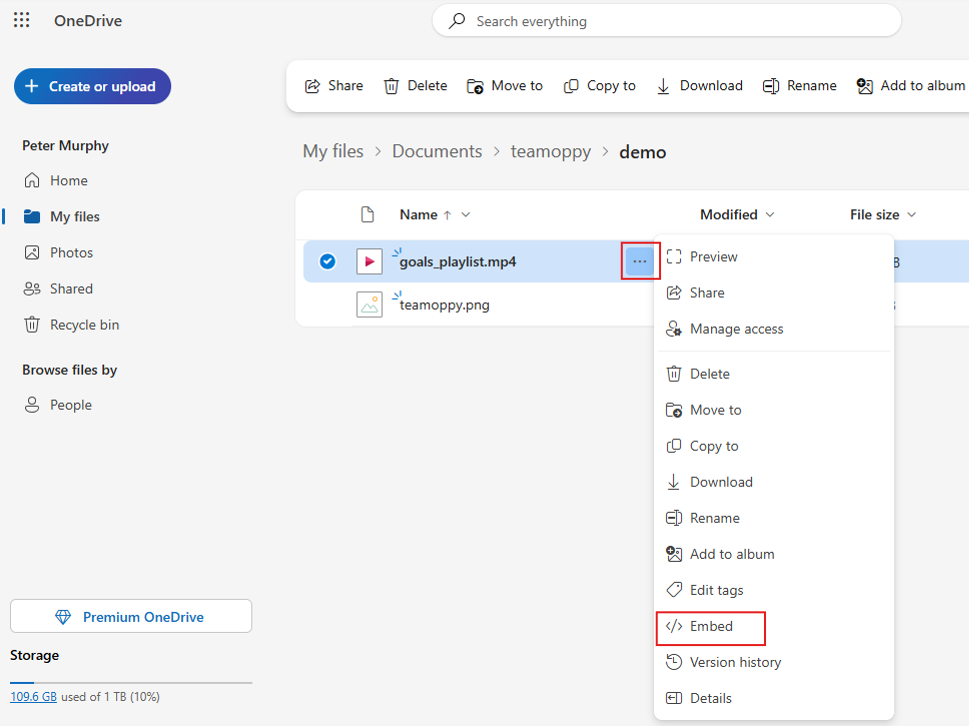
Click on the menu button and select Embed
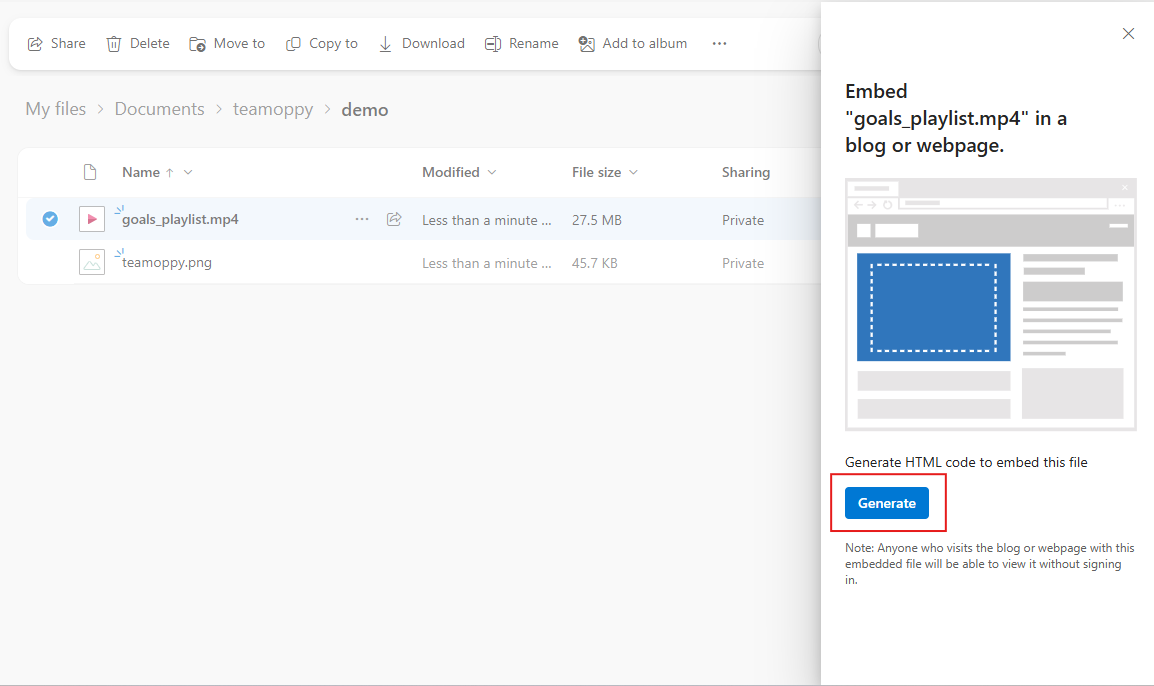
Click on the Generate button
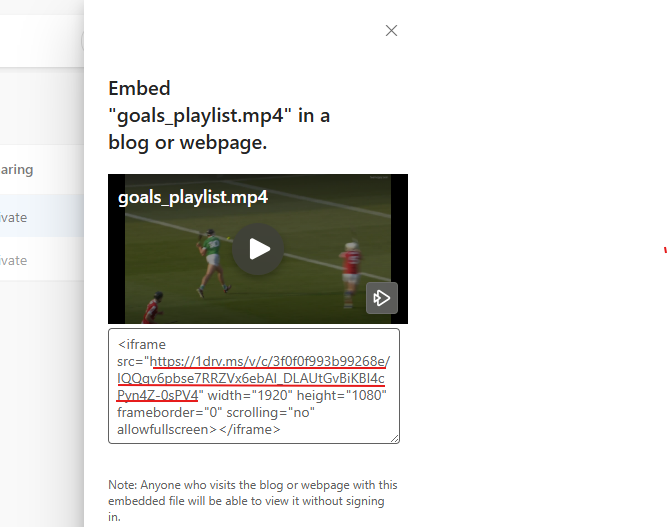
Copy the link text in the src field and use this to create the Embedded Image or Video in the report.
YouTube
Click on the Share button, then choose the Embed option
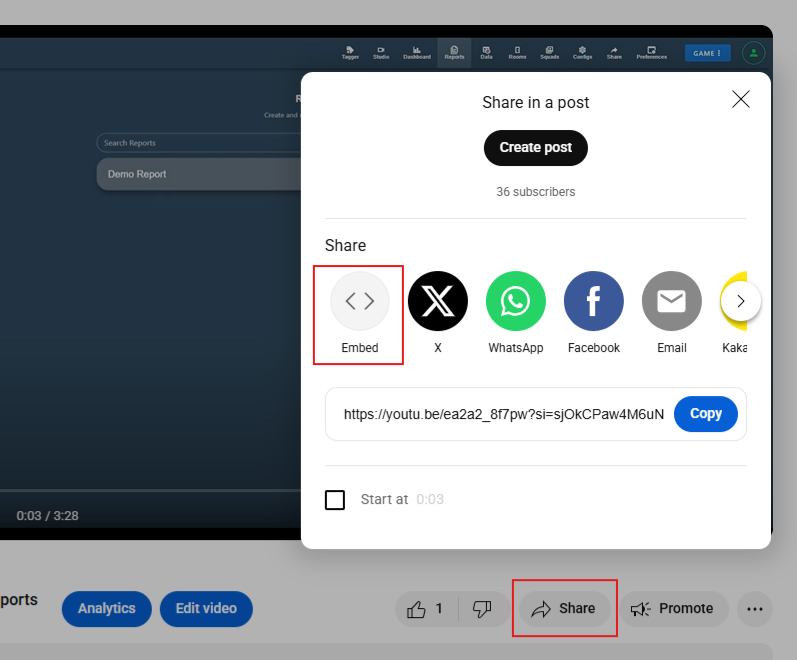
Copy the link text in the src field and use this to create the Embedded Video in the report.