Get Started
Get started with Tagger
Get Started
To get started open Tagger in your browser (Chrome is the recommended browser) or install the Desktop version of Tagger from the TeamOppy Launchpad.
Create a New Game
In the Tagger page click on the Game menu option and click New.
Game setup is a four step wizard: Setup, Team A, Team B and Video.
Step 1 - Setup
Game Information - optionally set the Competition, Date and Venue. These are stored for information and query purposes.
Game Configuration - select your Sport Configuration. The first time you use Tagger this list will be empty: click Import Template and choose the TeamOppy Catalog to import a Configuration Template. Once a template is selected you can adjust the Players per team, Subs per team, Periods and Minutes per period for this game.
Step 2 - Team A and Step 3 - Team B
Each team has its own step, and the team steps are disabled until a Sport Configuration has been chosen.
- Pick a squad from the Team A Squad list to pre-fill the team name and lineup, or leave it empty and enter the team manually. Selecting a squad switches the lineup to the Picker view.
- Set the team name, choose a logo, and set the primary and text colours.
- Build the lineup in the Editor or Picker view. The team actions menu (⋮) lets you clear the team, reset from the squad, sort by number, and choose whether player numbers are set manually or taken from the squad.
Step 4 - Video
This step is optional - leave it empty if you are tagging without video. You can set up to four video sources, choosing from Local File, YouTube, Vimeo, HLS, MP4 URL, or a live connected camera in the desktop app.
When you are finished, click Save in the top right of the wizard.
Set Tagger Preferences
From the left navigation menu, select Preferences. The page is organised into three tabs - Tagger View, Buttons and Appearance - with a Privacy & Consent card below them.
Tagger View selects the workspace layout:
- Standard - both teams' player buttons either side of the screen with the event buttons in the centre. Can be used for video tagging too.
- Video Analysis Mode - the video and events table on the left and the player and event buttons on the right. Larger devices only.
- Live Manager Mode - a manager-centric view focused on your own team with a team formation pitch graphic.
Display options for the selected layout appear underneath it.
Buttons sets the player and event button display and size:
- Set the Event button display to show either the name of the event, the short name of the event or the event icon. Short names and icons may be preferable for mobile devices.
- Set the Player button display to show full name or short name. Short name may be preferable on mobile devices.
- Set the size of the player and event buttons, or leave it on Auto to use the best size for the device.
Appearance selects the theme, and applies to this device only.
The Tagging Behaviour section below the layout options holds the Auto Pause setting, which automatically pauses the video while you tag an event.
Start the game
The match clock is displayed in a card in the top bar of the Tagger page. To start the game, click the green play button in that card. The clock starts running and the period number is shown beside it.
The tune icon at the start of the card opens the Timer settings, where you can change the Period, set the number of Periods and their Length for normal and extra time, switch the clock to count down, nudge the clock backwards or forwards, and Reset Timer.
Tag Events
The player and event buttons are enabled as soon as the timer is started and you can start tagging events by clicking on the Player and Event buttons. If an event is configured that requires a player to be selected then that event button will be disabled until a player is selected.
End a half or period
To end a half or period, click the red stop button in the clock card and confirm in the End Period? dialog. The clock resets to 0:00 and the period number advances automatically.
Start a new half or period
There is no period number to choose - it advances on its own when you end a period. Click the green play button in the clock card to start the clock for the new period.
End the game
The match ends with the final period. End it in the same way - click the red stop button and confirm. Tagger has no separate Full Time button by design: ending the last period is what closes out the game.
IMPORTANT
Please note that game data is stored in your browsers local storage. Clearing your browser cache will remove the game data. After each game you should save the game - from the Game menu, select Save Game - and store it on your local device or in your Cloud Workspace. Only one game at a time can be open in Tagger.
Similarly, for other data like Configuration data and Squad data it is important to download this data to your local device to prevent data loss in the browser.
Tip
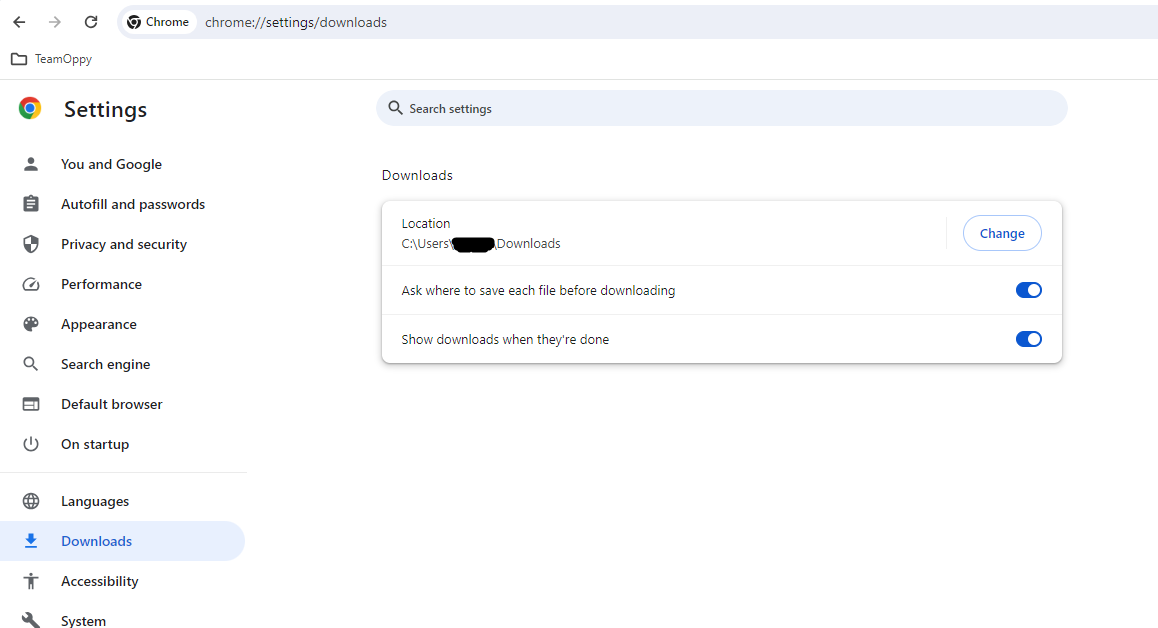
If using Chrome, by default files are downloaded to the Downloads folder of the users directory. You may want to change your download settings so that when you are downloading a game, configuration or squad that the browser will prompt you to select the folder to download your file to. See screenshot below. Select the switch "Ask where to save each file before downloading".
Share between devices
You may do live tagging on a tablet and then do further processing on your laptop post game. A handy way to share files between your devices is to utilise OneDrive, Google Drive or similar cloud storage tools.