Playing Area Configuration
Configure Tagger Playing Area Graphics
Playing Areas Configuration
Configure the playing area graphics for your sport. This could be a pitch, a court, a graphic of goal posts, anything that you would like to track x, y co-ordinates for.
Create new playing area
Click the New button to create a new playing area.
Playing Area Details
| Field | Description |
|---|---|
| Playing Area Name | Specify a name for the playing area. |
| Display team end indicators (Landscape) | Switch this on to display team end indicators on the graphic when it is shown in landscape. This is helpful to indicate, for example, the teams' goals at either end of the pitch. |
| Display team end indicators (Portrait) | The same, for when the graphic is shown in portrait — for example on a phone held upright. For goal post graphics it is likely you would leave both of these unselected. |
Rotation
There is no portrait rotation setting in the configuration. Rotation is a viewing and tagging preference held on each device: while tagging, a rotation button above the position map turns the graphic through 0°, 90°, 180° and 270°.
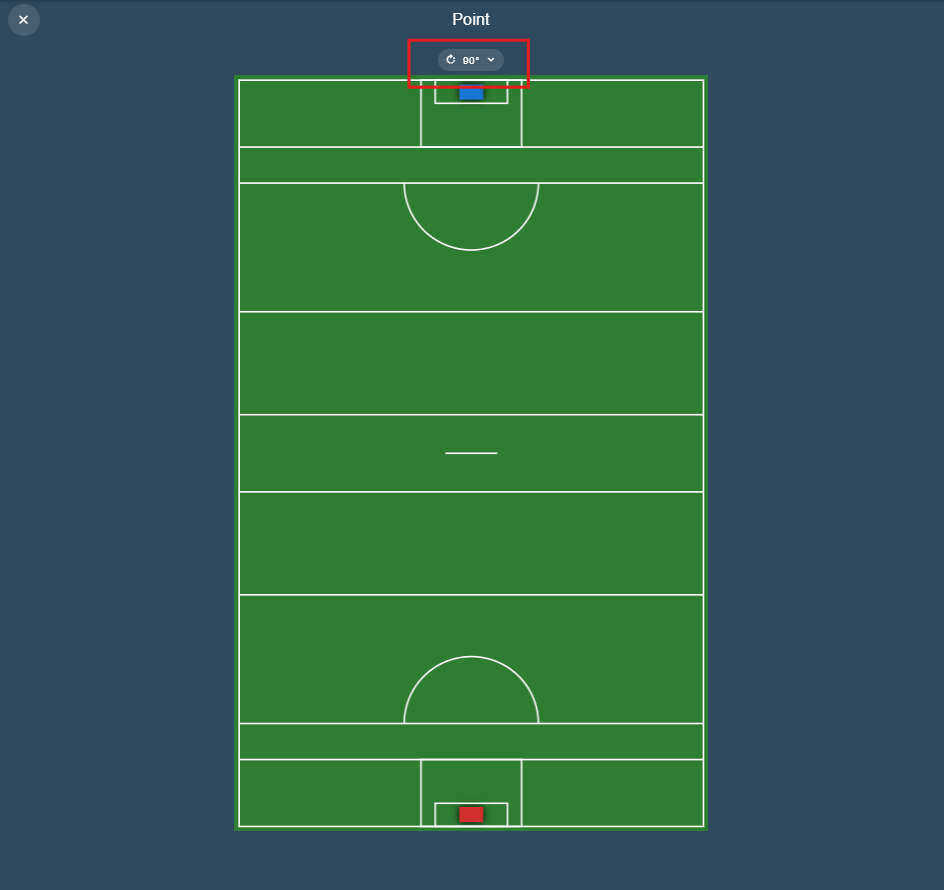
The setting is stored per graphic on that device. It is never saved with the game or configuration, and positions tagged while the graphic is rotated are stored in the graphic's own orientation, so rotating a map never affects your data.
A graphic with team end indicators turned on is also rotated automatically when you swap the sides of the tagging screen, while Auto Swap Position Map Sides is on (the default) — see Preferences. A new game starts those graphics at 0°.
See Rotating a Position Map for the rotation control while tagging.
Perimeter
The perimeter is the outer boundary of the graphic.
| Field | Description |
|---|---|
| Type | Currently the only option for perimeter type is Rectangle. More options may be added in the future. |
| Width | The width of the perimeter as viewed in landscape mode. Tip: you may want to have this a few metres wider than the actual pitch width itself. |
| Height | The height of the perimeter as viewed in landscape mode. Tip: you may want to have this a few metres taller than the actual pitch height itself. |
| Line color | The colour of the perimeter line. Can be transparent also. |
| Fill color | The background colour of the perimeter. Can be transparent also. |
Playing Area Objects
These are the lines, circles, etc... that you can draw on the graphic. Every object shares the following settings:
| Field | Description |
|---|---|
| Name | Give the object a name - this should be descriptive to identify the object. Important when a graphic has many objects. |
| Type | The type of object - line, rectangle, circle or ellipse. |
| Line color | The line colour of the object. |
| Fill Color | Switch this on to give the object a background fill colour, then pick the Fill color. |
| Clip | Switch this on to clip the object. This is useful if you only want to show a portion of the object that you have drawn. For example, to draw a semi-circle: draw a circle first, then clip it to get the resultant semi-circle. It clips in a rectangular format. |
The remaining fields depend on the object Type:
Line
| Field | Description |
|---|---|
| From x co-ordinate | The starting x co-ordinate for the line. |
| From y co-ordinate | The starting y co-ordinate for the line. |
| To x co-ordinate | The ending x co-ordinate for the line. |
| To y co-ordinate | The ending y co-ordinate for the line. |
| Dash Length | Set this to add a dash to the line. |
| Dash Gap | Set this to add a dash gap to the line. |
Rectangle
| Field | Description |
|---|---|
| X co-ordinate | The x co-ordinate of the top left of the rectangle. |
| Y co-ordinate | The y co-ordinate of the top left of the rectangle. |
| Width | The width of the rectangle. |
| Height | The height of the rectangle. |
Circle
| Field | Description |
|---|---|
| X co-ordinate | The x co-ordinate for the center point of the circle. |
| Y co-ordinate | The y co-ordinate for the center point of the circle. |
| Radius | The radius of the circle. |
| Dash Length | Set this to add a dash to the circle. |
| Dash Gap | Set this to add a dash gap to the circle. |
Ellipse
| Field | Description |
|---|---|
| X co-ordinate | The x co-ordinate for the center point of the ellipse. |
| Y co-ordinate | The y co-ordinate for the center point of the ellipse. |
| Radius X | The horizontal radius of the ellipse. |
| Radius Y | The vertical radius of the ellipse. |
Clip
Shown when Clip is switched on.
| Field | Description |
|---|---|
| Clip X co-ordinate | The starting x co-ordinate for the clip (top left of the clip rectangle). |
| Clip Y co-ordinate | The starting y co-ordinate for the clip (top left of the clip rectangle). |
| Clip Width | The width of the clip. |
| Clip Height | The height of the clip. |