Games
The Games tab is the entry point to the Analytics 360 pipeline. From here you select which tagged matches to load into the analytics engine, configure what supporting assets to auto-create during the load, and manage the set of games available for exploration, measurement, and visualization.
Overview
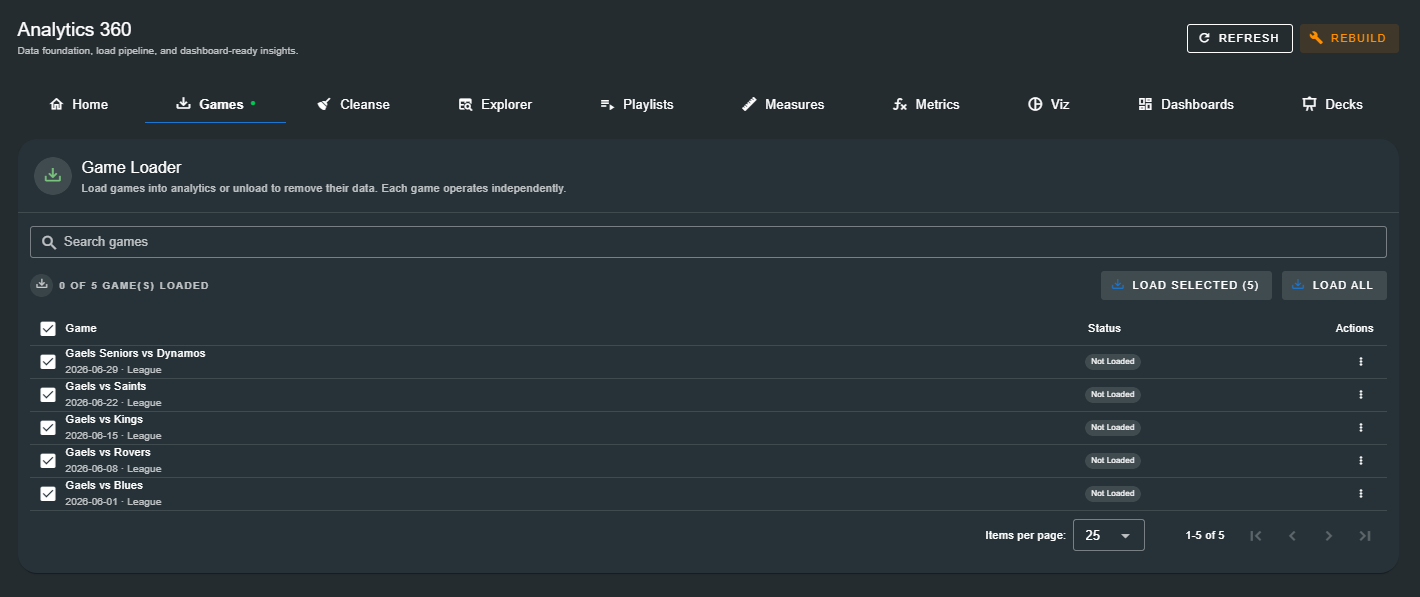
The Game Loader displays every game stored in your Tagger database. Each row shows the match name, date, competition, and current load status. From this single view you can load individual games, bulk-load multiple selections, or unload games whose data you no longer need.
Key Actions
| Action | Description |
|---|---|
| Load | Import a game's tagged events, labels, and metadata into the analytics database. Available for any game with a status of Not Loaded. |
| Unload | Remove a game's analytics data (events, labels, load history) from the analytics database. The original game record and its source events in the Tagger database are unaffected. |
| Load Selected | Bulk-load every checked game in a single operation. The Auto-Load Configuration dialog appears once and applies to all selected games. |
| Load All | Load every game in the database — useful when setting up Analytics 360 for the first time or after a rebuild. |
| Rebuild | Available from the toolbar. Re-processes all loaded games from scratch, re-applying cleanse rules and re-computing derived data. Useful after changing your Tagger configuration or adding new cleanse rules. |
Status Indicators
Each game displays one of two statuses:
| Status | Meaning |
|---|---|
| Not Loaded | The game exists in your Tagger database but its events have not been imported into Analytics 360. You cannot explore or visualise this game's data until it is loaded. |
| Loaded | The game's events, labels, and metadata are available in the analytics database. Explorer, measures, metrics, visualizations, and all downstream tools can access this game. |
Loading a Game
Loading a game is a two-step process: select the game, then configure what to auto-create alongside the event import.
Step 1 — Select Games
From the Game Loader table, check one or more games. Use the search bar to filter by team name, date, or competition if you have a large game library. The status bar above the table shows how many of your total games are currently loaded.
You can load games in three ways:
- Single game — Click the kebab menu (⋮) on any row and select Load.
- Bulk selection — Check multiple rows and click Load Selected (n).
- Load everything — Click Load All to import every game in your database.
Step 2 — Auto-Load Configuration
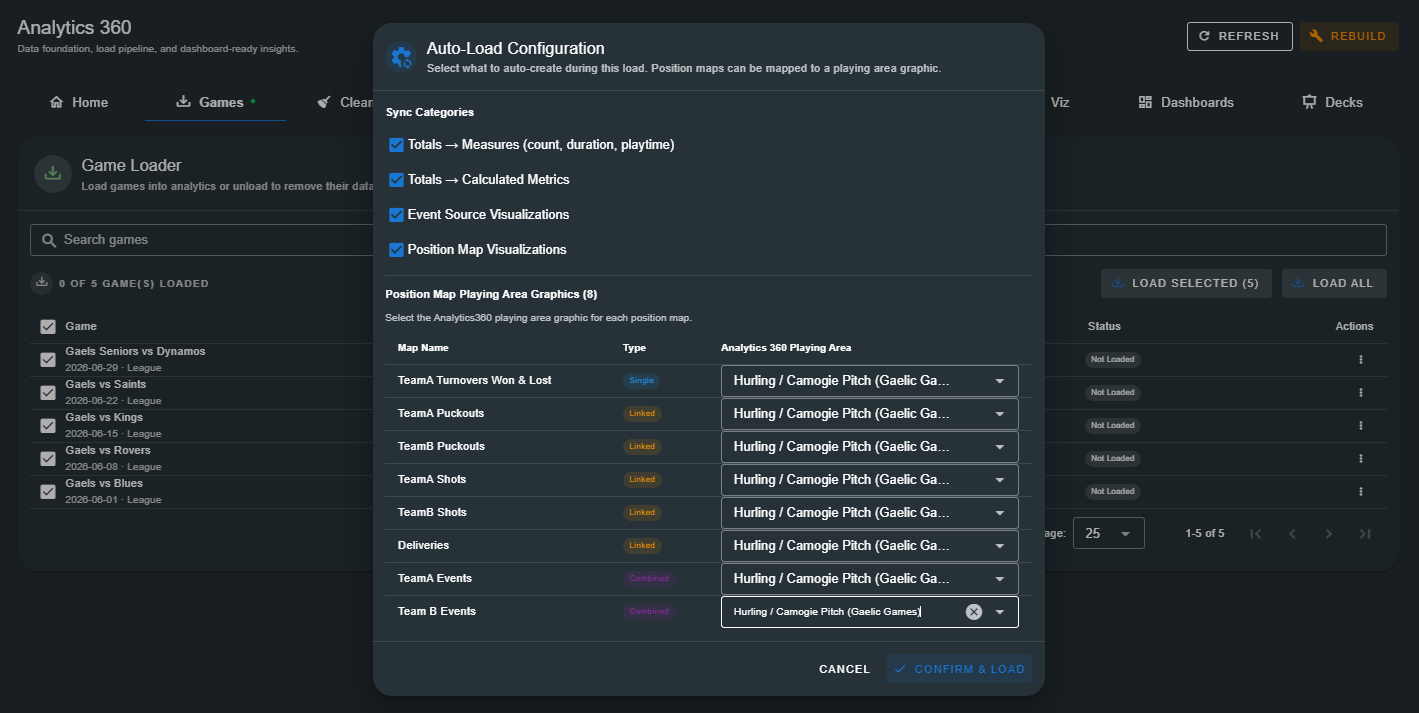
After confirming which games to load, the Auto-Load Configuration dialog appears. This dialog lets you bootstrap your analytics workspace by automatically creating measures, metrics, and visualizations derived from the game's Tagger configuration — saving you from setting everything up manually.
Sync Categories
Four categories of assets can be auto-generated during the load. Each is enabled by default — uncheck any you do not need.
| Category | What It Creates |
|---|---|
| Totals → Measures | Converts every Total defined in your Tagger configuration into a reusable measure. Includes count, duration, and playtime variants where applicable. For example, a "Total Tackles" total becomes a Tackles (count) measure. |
| Totals → Calculated Metrics | Creates calculated metrics from your Tagger totals, enabling them to be used directly in KPI cards, charts, and tables. These metrics are simple pass-through expressions that reference the auto-generated measures. |
| Event Source Visualizations | Generates event-source visualizations for each event type in your configuration. These are pre-built views showing event counts, trends, and breakdowns — ready to drop into dashboards. |
| Position Map Visualizations | Creates position map visualizations from every position map defined in your Tagger configuration. Requires mapping each position map to an Analytics 360 playing area graphic (see below). |
Position Map Playing Area Graphics
When Position Map Visualizations is enabled, a table appears listing every position map from your Tagger configuration. For each map you must select which Analytics 360 playing area graphic it should overlay.
The table shows:
| Column | Description |
|---|---|
| Map Name | The name of the position map as defined in your Tagger configuration. |
| Type | The map type — Single (one event layer), Linked (two linked events), or Combined (multiple event layers). |
| Analytics 360 Playing Area | A dropdown listing all available playing area graphics from the catalog (e.g. "Hurling / Camogie Pitch", "Gaelic Football Pitch", "Soccer Pitch"). Select the graphic that matches the sport and field layout used by the position map. |
Position map graphics are drawn from the Analytics 360 playing area catalog, which includes standard field and pitch layouts for common sports. If your sport is not listed, position maps can still be loaded — the visualization will use a generic field graphic.
Once you have reviewed the configuration, click Confirm & Load to begin the import. Analytics 360 processes each game sequentially, importing events, labels, and generating the selected assets. Progress is reflected in the status badge, which updates to Loaded when complete.
Unloading a Game
Unloading removes a game's analytics data while preserving the original game record.
To unload:
- Click the kebab menu (⋮) on a loaded game's row.
- Select Unload.
- Confirm in the dialog that appears.
Unloading deletes all analytics events, labels, cleanse results, and load history for that game. The original game in your Tagger database is not affected. You can re-load the game at any time.
Searching and Filtering
The search bar at the top of the Game Loader filters the game list in real time. It matches against:
- Team A and Team B names
- Match date
- Competition name
Type any part of a team name, date, or competition to narrow the list. The loaded count and selection state are preserved across searches, and the table paginates at 25 games per page by default.
Rebuilding
The Rebuild button in the Analytics 360 toolbar (visible on every tab) triggers a full re-processing of all loaded games. Use Rebuild when you:
- Change your Tagger event configuration and want totals and measures to reflect the new setup.
- Add or modify cleanse rules and need them re-applied to existing data.
- Add new position maps or event source configurations and want fresh visualizations generated.
Rebuilding opens the same Auto-Load Configuration dialog, allowing you to choose which categories to regenerate. All existing loaded data is re-processed from source — no data is lost, but derived assets may be updated or replaced.
Next Steps
Once your games are loaded, the rest of the pipeline unlocks: