Decks
Decks are the presentation layer of Analytics 360 — they combine slides, visualizations, playlists, and rich text into narrated, exportable presentations. A deck is a sequence of slides, each built from a layout template and populated with content, that can be presented live or exported as an MP4 video file.
Overview
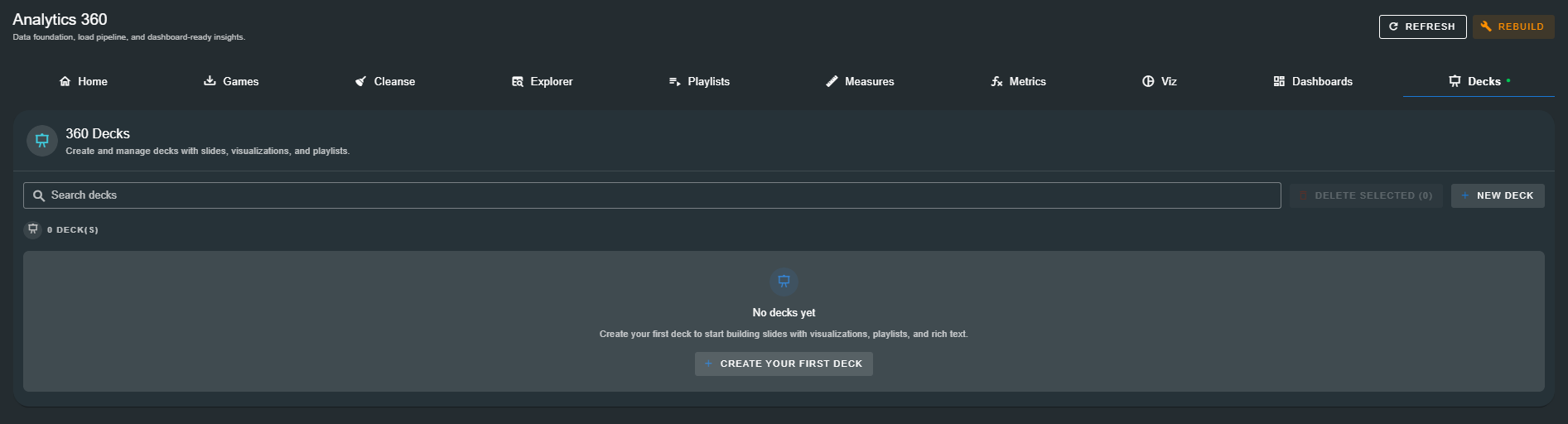
The Decks tab operates in three modes: a list view showing all saved decks, a fullscreen editor view for building slides, and a presentation mode for live slideshow playback.
List View
When decks exist, the list view displays a table with the following columns:
| Column | Description |
|---|---|
| Name | The deck name. Click any row to open the editor. |
| Slides | The number of slides in the deck. |
| Actions | Kebab menu (⋮) with Rename and Delete options. |
Above the table, a search bar filters decks by name. A count badge shows the total number of saved decks. Checkboxes enable bulk delete.
Empty State
When no decks have been saved, the page displays: "Create your first deck to start building slides with visualizations, playlists, and rich text." with a Create Your First Deck button.
The Deck Editor
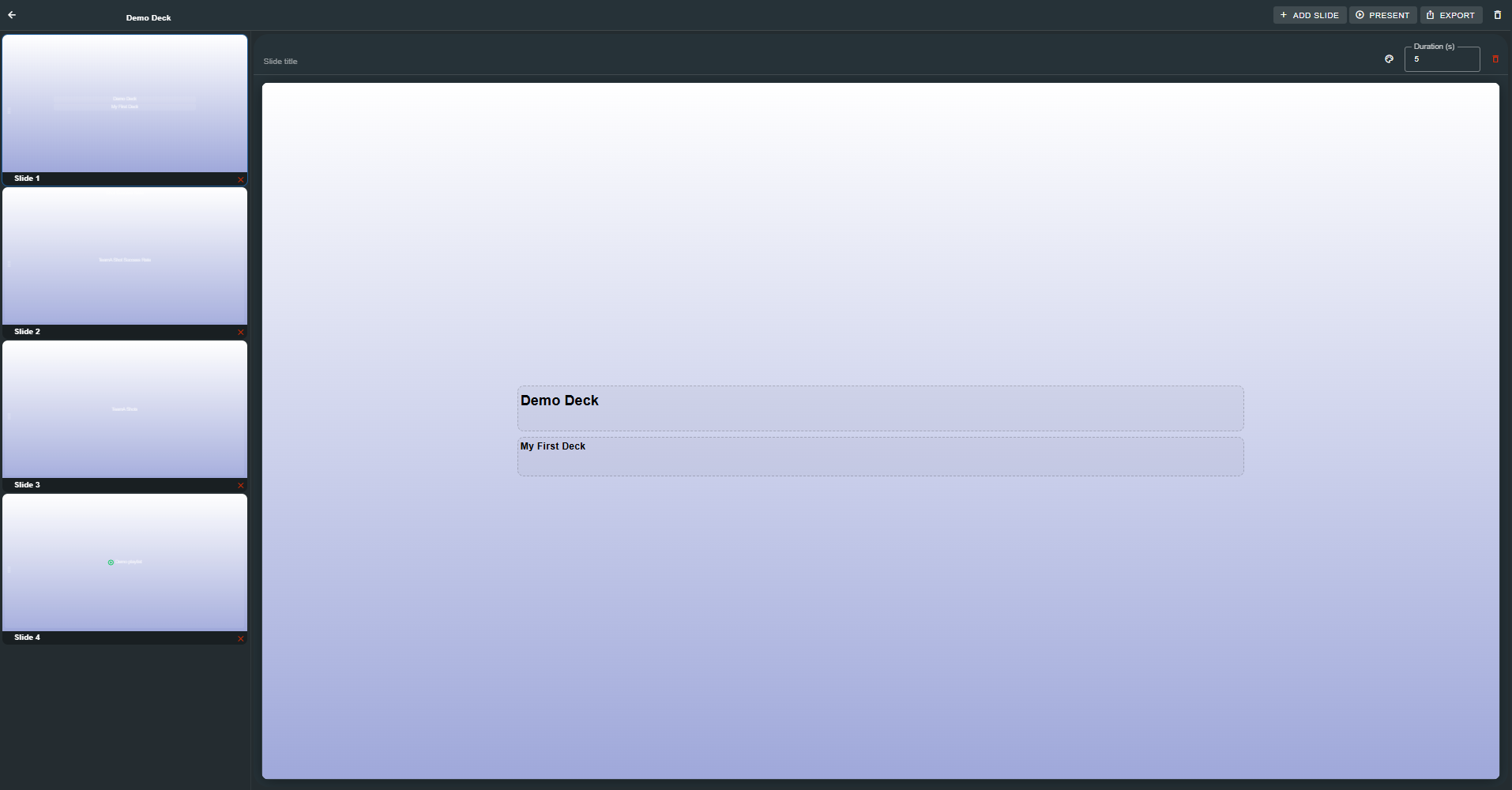
Click a deck row (or New Deck) to open the fullscreen editor. The editor has three panels: a slide thumbnail strip on the left, the active slide editor in the centre, and a slide properties panel.
Editor Toolbar
The top toolbar provides:
| Control | Description |
|---|---|
| Back (←) | Exit the editor and return to the deck list. |
| Deck Name | Inline editable text field. Changes auto-save on blur. |
| Autosave Indicator | Chip showing Saving... (with spinner) or Saved (checkmark) as slides auto-save. |
| Add Slide | Opens the layout picker to add a new slide. |
| Present | Launches the fullscreen slideshow presentation mode. |
| Export | Opens the video export dialog. |
| Delete | Deletes the entire deck after confirmation. |
Slide Thumbnails
The left panel shows a vertical strip of slide thumbnails. Each thumbnail shows a miniature preview of the slide layout with content indicators. Thumbnails are draggable — drag to reorder slides. The sort order persists to the database.
- Selected slide — highlighted with a primary-colour border and glow
- Drag handle — vertical grip icon on the left edge of each thumbnail
- Content indicators — icons and preview text show what each slot contains (playlist icon, visualization name, richtext snippet)
Slide Properties
Each slide has configurable properties shown in the right panel:
| Setting | Description |
|---|---|
| Background | Solid colour or Gradient (start → end colour with configurable direction: to-right, to-bottom, to-bottom-right, to-top-right). |
| Text Color | Default text colour for the slide. Overridable per slot. |
| Display Duration | How long the slide is shown during presentation auto-advance and video export (in seconds). |
Slide Layouts
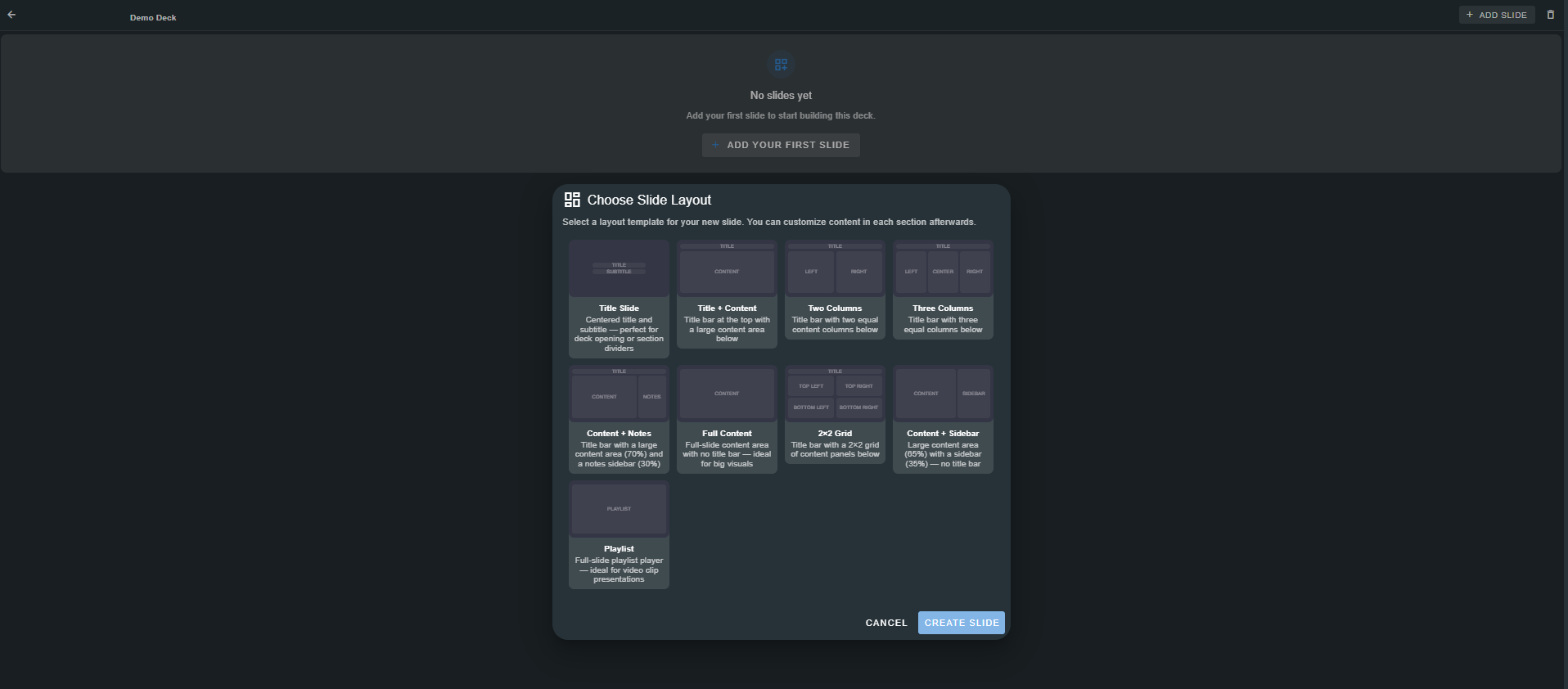
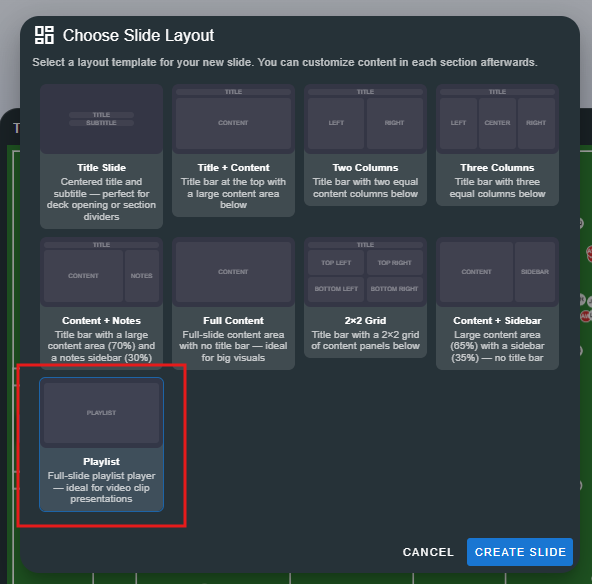
When adding a slide, the Choose Slide Layout picker presents nine layout templates:
| Layout | Description | Slots |
|---|---|---|
| Title Slide | Centred title and subtitle — perfect for deck openings or section dividers. | Title, Subtitle |
| Title + Content | Title bar at the top with a large content area below. | Title, Content |
| Two Columns | Title bar with two equal content columns below. | Title, Left, Right |
| Three Columns | Title bar with three equal columns below. | Title, Left, Center, Right |
| Content + Notes | A main content area with a smaller notes panel on the right. | Content, Notes |
| Full Content | A single full-screen content slot with no title bar. | Content |
| 2×2 Grid | Four equal quadrants for dashboard-style layouts. | Top-Left, Top-Right, Bottom-Left, Bottom-Right |
| Content + Sidebar | Large content area with a narrow sidebar on the left. | Sidebar, Content |
| Playlist | A single video playlist slot designed for clip playback. | Playlist |
Slide Content Types
Each slot in a slide layout can hold one of three content types:
Rich Text
A Tiptap rich text editor for headings, paragraphs, bullet lists, and styled text. Perfect for title slides, bullet-point summaries, and narrative commentary.
- Full rich text formatting (bold, italic, headings, lists)
- Text colour configurable per slot (overrides the slide default)
- HTML content is rendered directly in presentation mode

Visualization
Embeds any saved Analytics 360 visualization into the slide. Open the Select Visualization picker to choose a visualization by name.
| Setting | Description |
|---|---|
| Visualization | The saved visualization to display. |
| Horizontal Align | Left, Center, or Right alignment within the slot. |
| Vertical Align | Top, Center, or Bottom alignment within the slot. |
| Size | Auto (fit), Small (40%), Medium (60%), Large (85%), or Full (100%). |
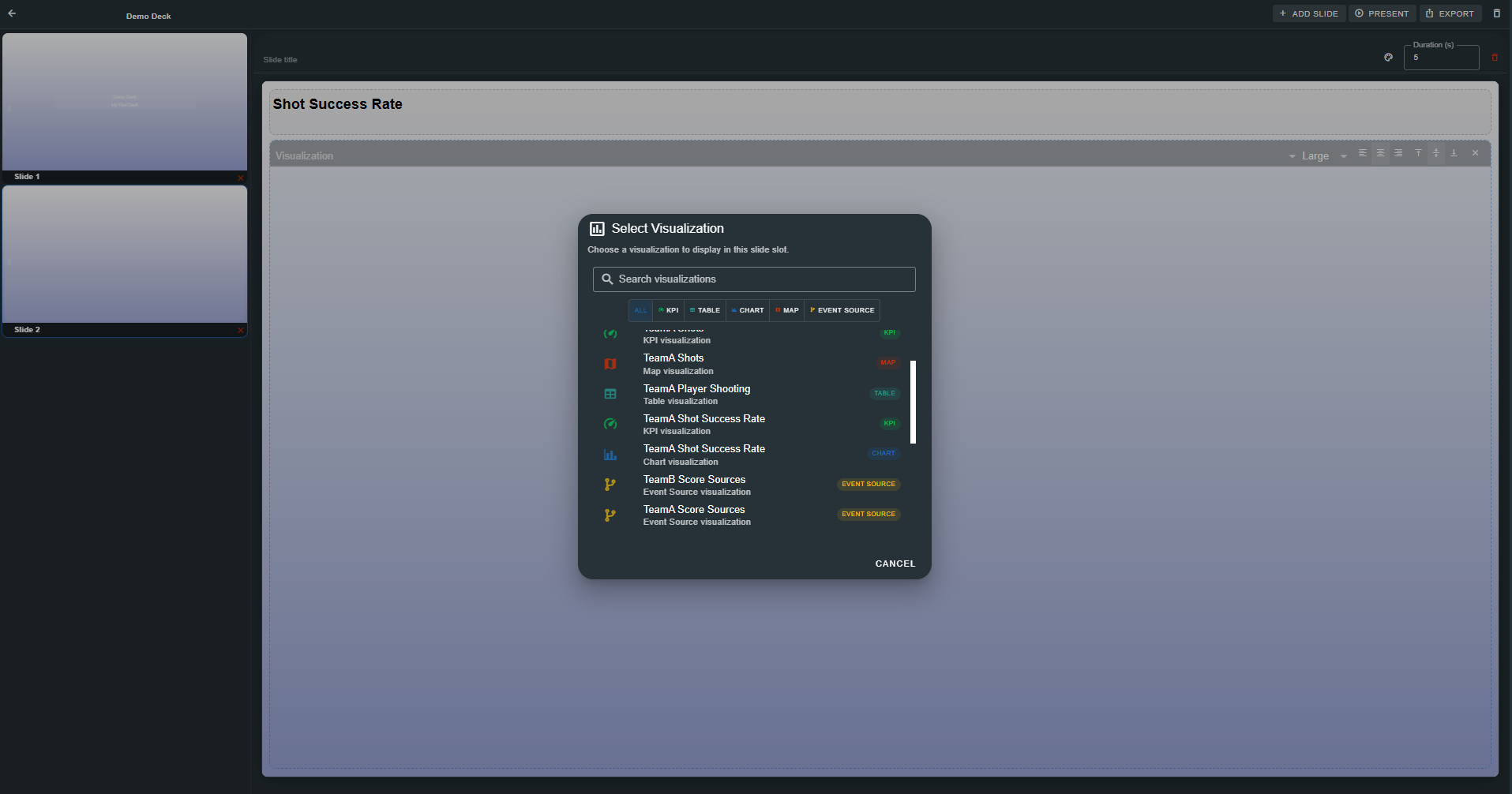
The visualization renders identically to its standalone and dashboard appearance. Charts, KPIs, tables, position maps, and event sources all work in deck slides.
Playlist
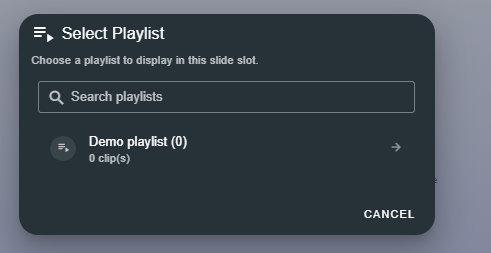
Embeds a saved playlist for video clip playback. Open the Select Playlist picker to choose a playlist layout.
And then select the playlist itself.
When a playlist slide is presented or exported, the clips play sequentially within the slide. The slide duration is driven by the playlist — it advances only after all clips have finished playing.
Only playlists containing clips from local files can be exported to video. Playlists that include YouTube clips cannot be exported and will be skipped during the export process.
Presentation Mode
Click Present in the editor toolbar to launch the fullscreen slideshow.
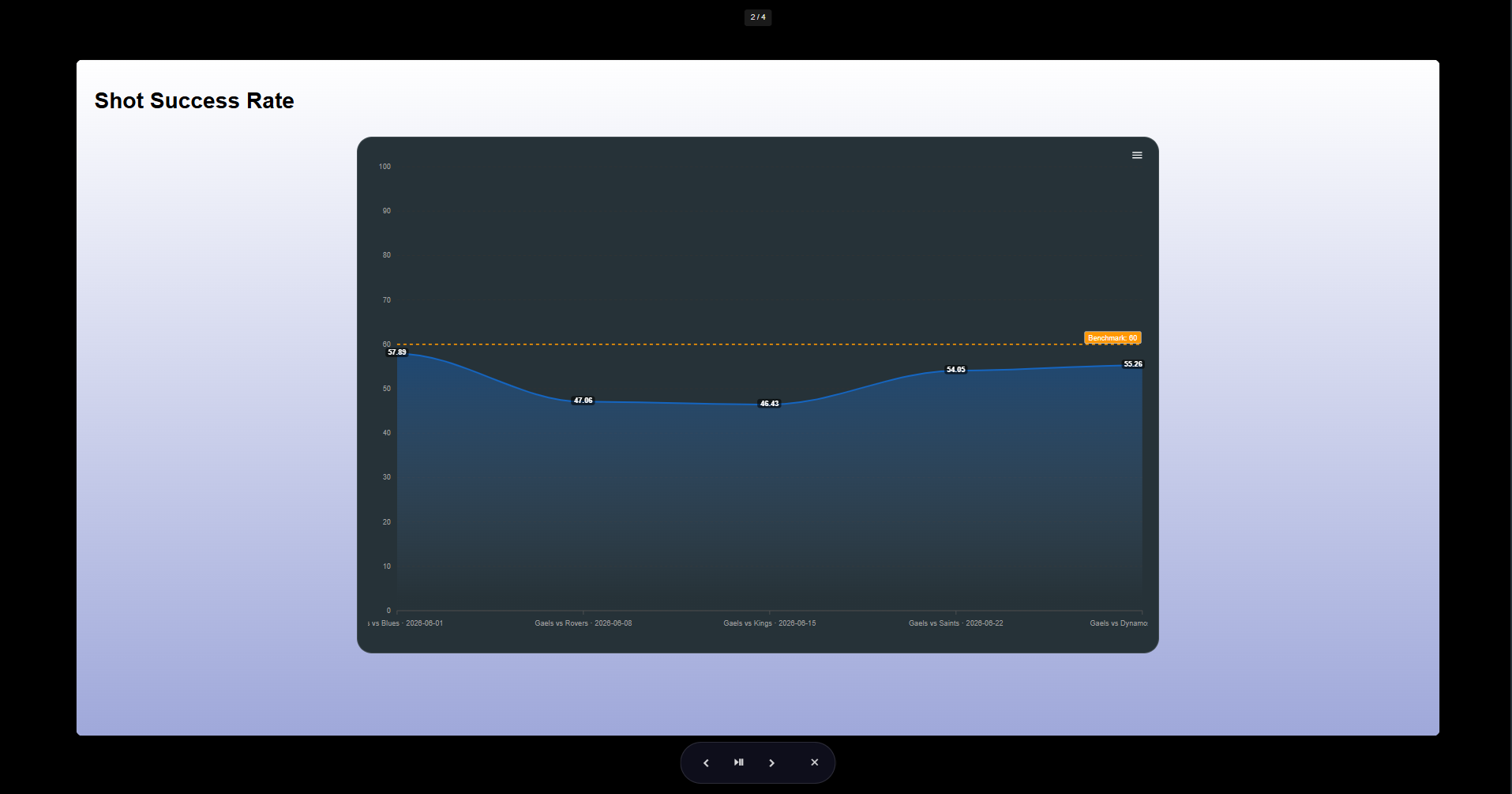
Controls
| Control | Description |
|---|---|
| ← / → arrow keys | Navigate to previous / next slide. |
| Space bar | Advance to the next slide. |
| Escape | Exit presentation mode. |
| On-screen buttons | Previous, Play/Pause (auto-advance), Next, Close. |
Features
- Slide counter — Centred chip showing "2 / 4" (current / total).
- Auto-advance — Toggle with the Play/Pause button. When active, slides auto-advance after their configured display duration. A progress bar at the top of the screen fills over the duration.
- Playlist slides — Playlist-equipped slides hold until all clips have played, then auto-advance (if auto-advance is enabled).
- Fade transitions — Smooth crossfade between slides.
Video Export
Click Export in the editor toolbar to render the deck as an MP4 video file.
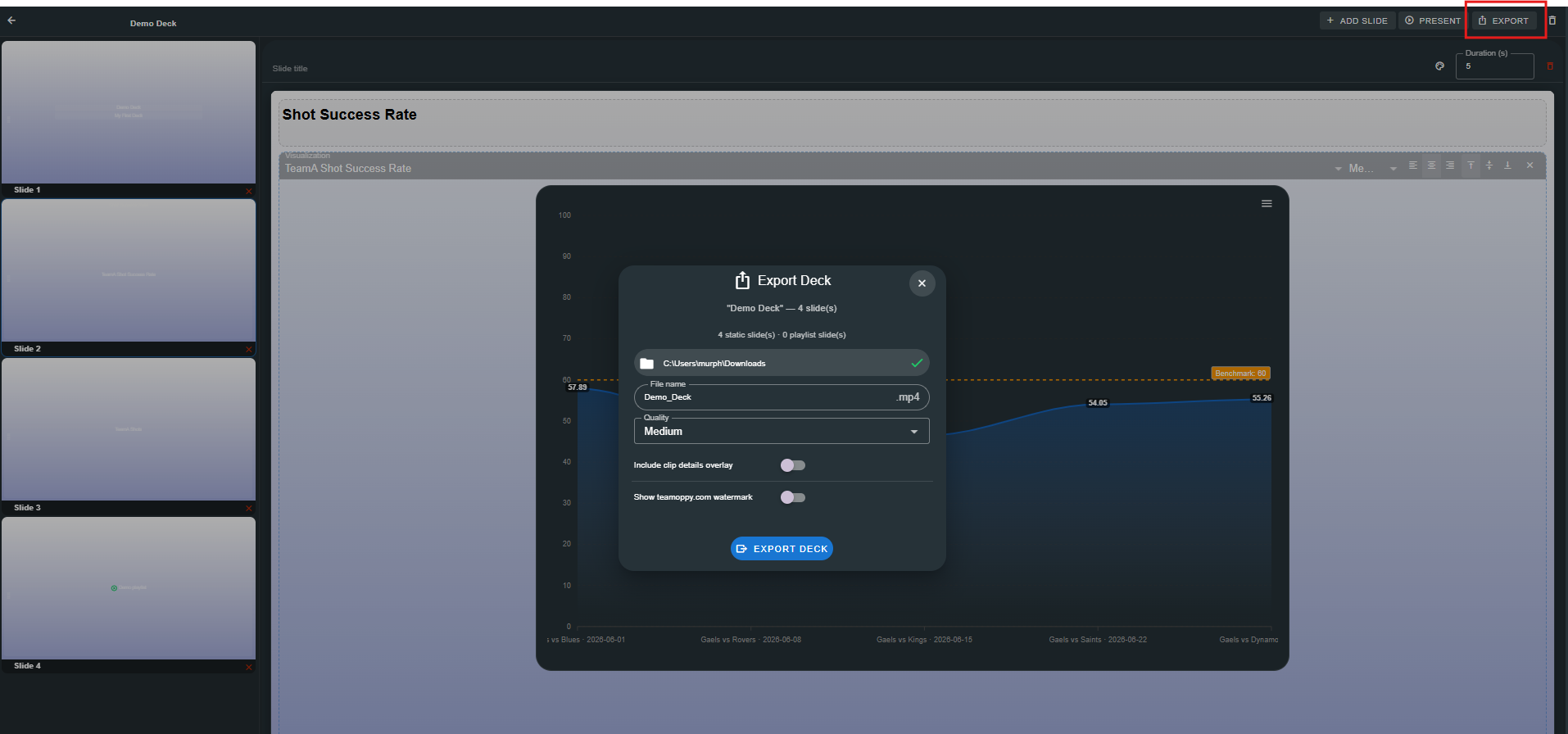
Export Settings
| Setting | Description |
|---|---|
| Output Folder | Click Select Folder to choose where the MP4 will be saved. |
| File Name | Auto-populated from the deck name, sanitized for file systems. Editable. |
| Quality | High (larger file), Medium, or Standard (smaller file). |
| Include Clip Details Overlay | When enabled, video clips in playlist slides show an overlay with clip metadata. |
| Watermark | A Teamoppy watermark is included by default. Disabled for accounts with the studio watermark removal permission. |
| Include audio from playlist clips | Off by default, so the video clips in playlist slides are exported silent. Switch it on to keep their original audio. The audio is normalised to 128 kbps stereo and pauses while a drawing overlay is held on screen, so it stays in step with the picture. Slides that are images or visualizations have no audio. |
Include audio from playlist clips applies to the export you are about to run. It is not remembered for the next one.
Export Process
- Each slide is rendered individually by capturing its DOM element as an image
- Static slides (rich text and visualizations) are rendered for their configured duration
- Playlist slides play the actual video clips sequentially
- Progress is shown as "Rendering slide 2/4 (static, 5s)..." with a percentage bar
- On completion, a success dialog shows the output file path
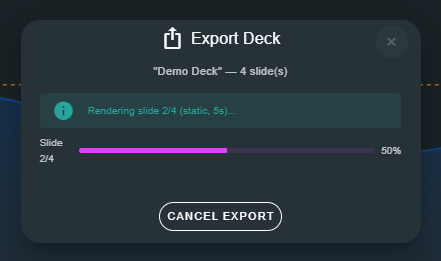

Export uses ffmpeg under the hood. Playlist slides with video clips produce the highest quality output since the original video frames are used directly rather than captured from screen renders.
Managing Decks
Creating
Click New Deck in the list view. Enter a name in the dialog and click Create. The new deck opens immediately in the editor.
Renaming
Use the kebab menu (⋮) → Rename to change a deck's name from the list view. Or edit the name directly in the editor toolbar — it auto-saves on blur.
Deleting
Use Delete from the kebab menu or the editor toolbar. A confirmation dialog asks you to confirm. Deleting a deck removes all its slides permanently.
Bulk Delete
Check multiple rows and click Delete Selected (n). A confirmation dialog shows the count. All selected decks and their slides are removed.
Searching
The search bar filters decks by name in real time.
How Decks Connect
Decks are the top-level presentation format in Analytics 360 — they assemble slides into narrative sequences:
Tagged Events  →  Measures  →  Calculated Metrics  →  Visualizations  →  Decks
                                            Playlists  →  ────────────────→  Decks
A deck can contain any number of slides with any mix of content types. Visualizations and playlists are referenced by ID — updating a visualization or playlist automatically updates all decks that reference it. Video export makes decks portable for sharing outside the application.