Installation
Getting started with Livestream
Installation
To get started with Livestream, install the Livestream app. Livestream is currently available for Windows. Installer files are available from the TeamOppy Launchpad. The Livestream app is the central hub that captures video and connects with Tagger devices.
Security Certificates
The Livestream app uses HTTPS to serve video and data. For this reason, you must install security certificates on the Tagger devices that will connect to Livestream.
You can download the Livestream certificate from Tagger.
- From the main menu, go to Game, then Livestream.
- In the Tagger Livestream client screen, click Download Livestream Certificate. This downloads the certificate to your file system.
- Follow the instructions below for the various devices to install the certificate.
Windows
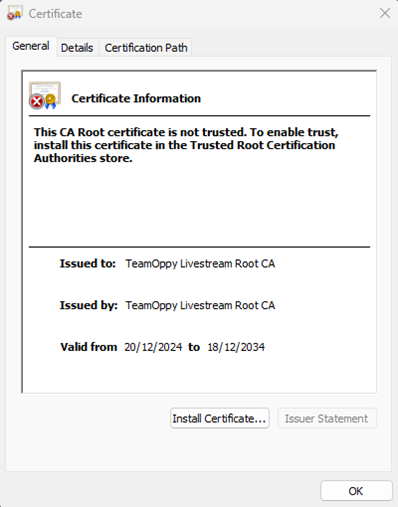
On Windows, double-click the certificate, then click Install Certificate.
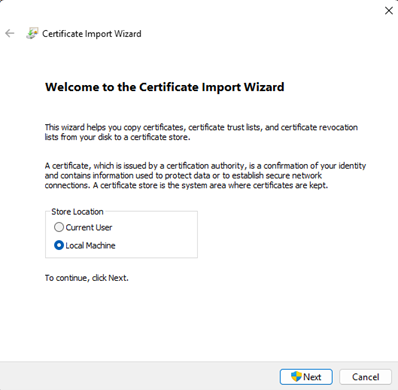
Select Local Machine, then click Next.
Choose "Place all certificates in the following store", then select Browse.
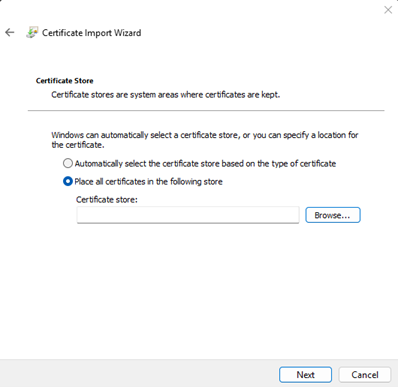
Select "Trusted Root Certification Authorities".
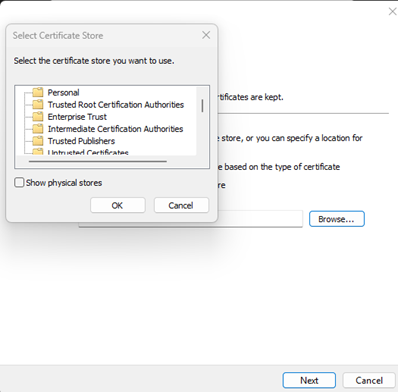
Click Next.
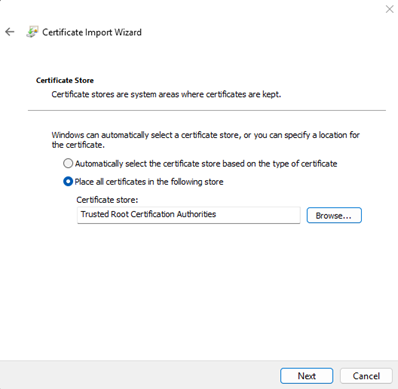
Click Finish.
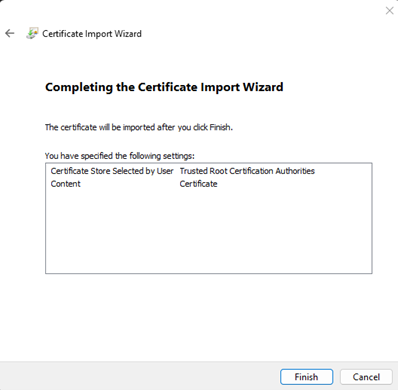
The certificate should now be imported.
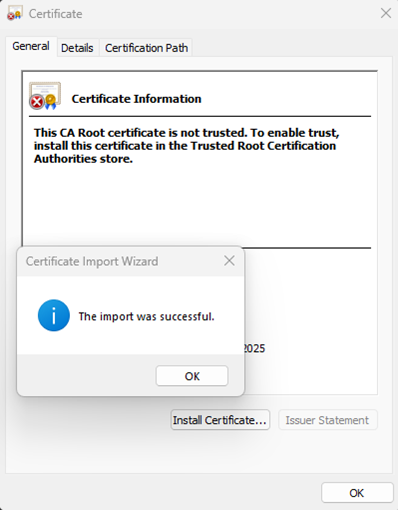
Restart your computer for the certificate to take effect.
You should now be able to connect to the Livestream app from Tagger on your Windows device.
iOS
Download the certificate to a folder on your iOS device.
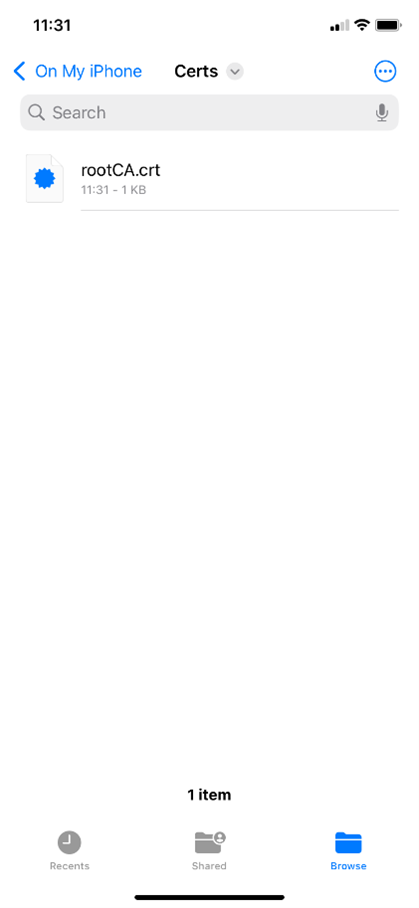
Tap the certificate to download the profile.
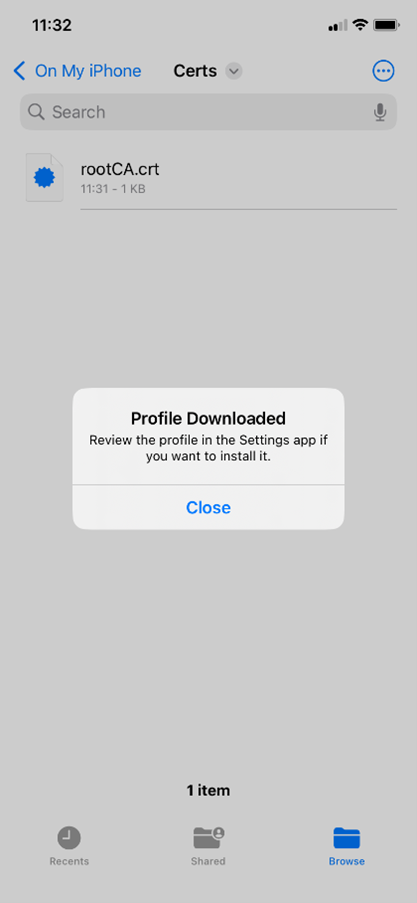
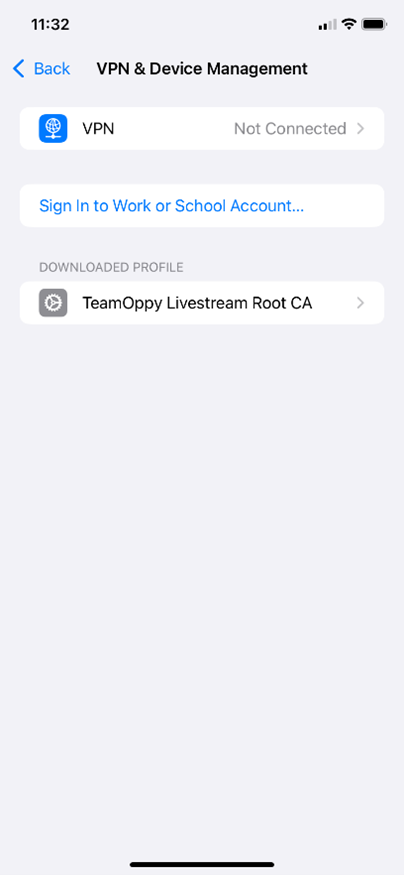
In the Settings app, search for VPN & Device Management. You will see the downloaded profile there.
Open the profile and tap Install.
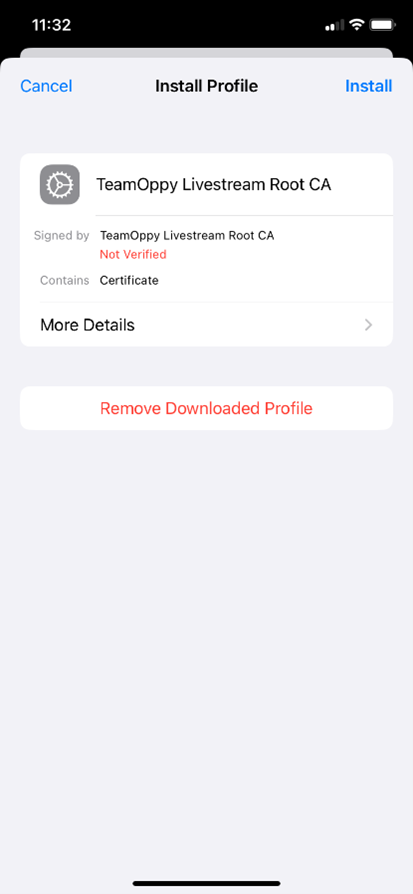
Follow the on-screen instructions to complete installation.
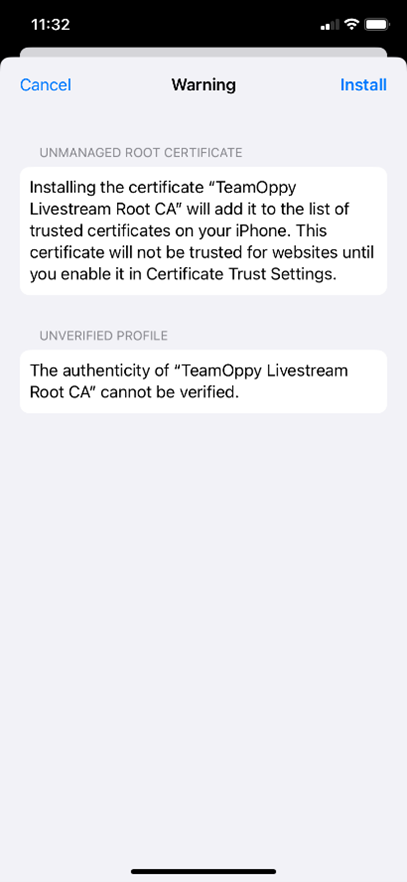
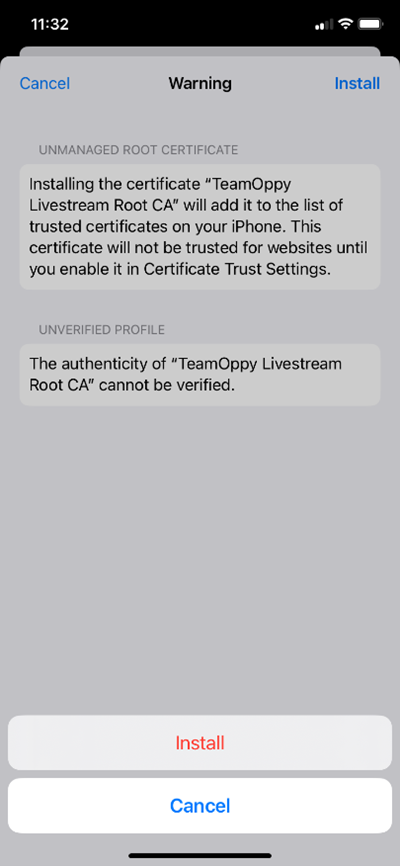
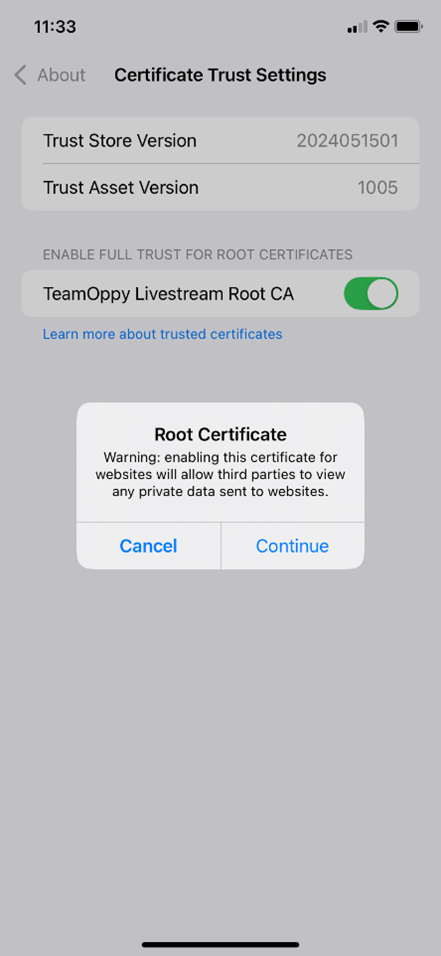
Then, in Settings, go to Certificate Trust Settings.
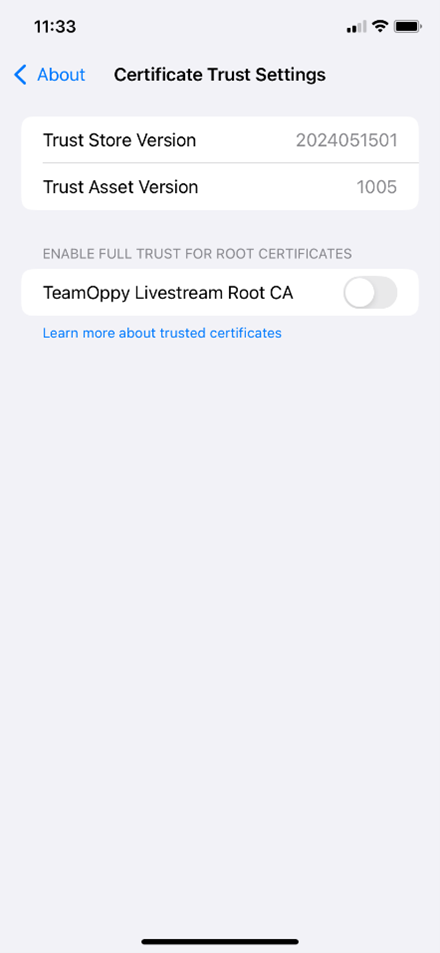
Enable the switch to grant full trust to the root certificate.